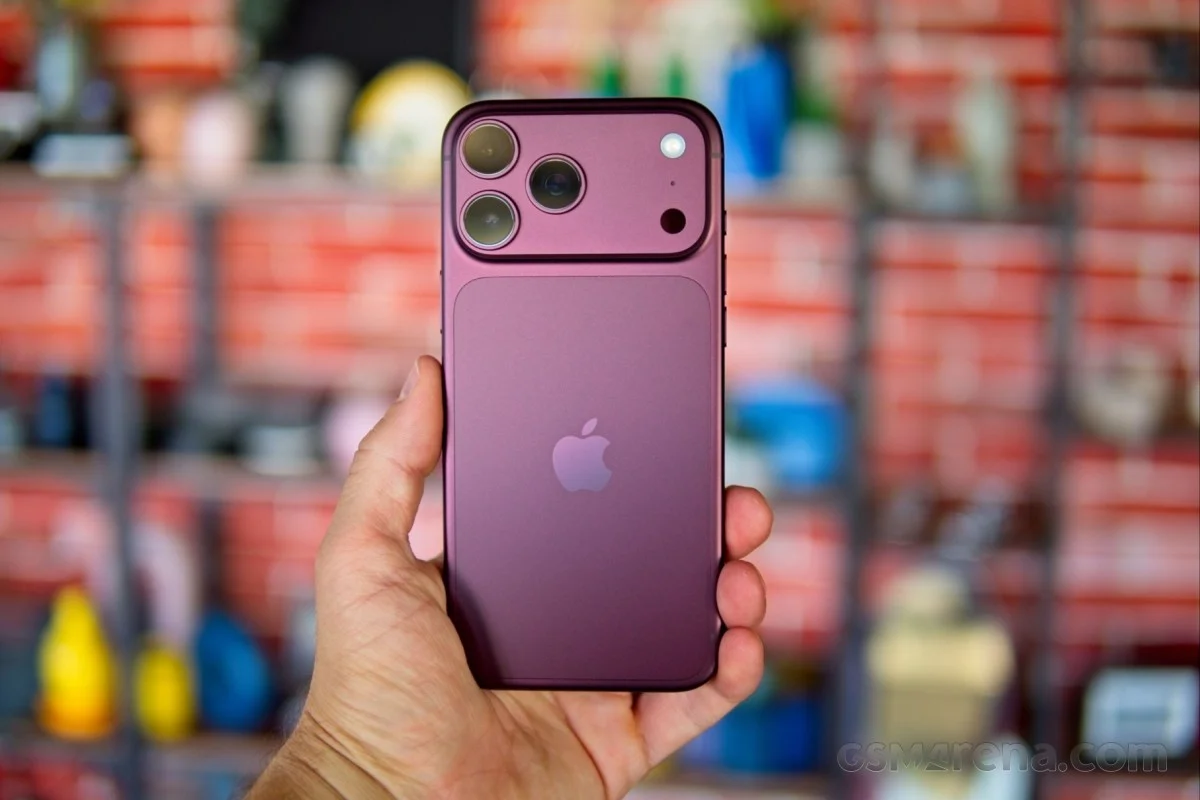






Apple’s recent release of the MacBook Pro equipped with the advanced PROLED XDR Display introduced one of the most long-awaited and heavily debated hardware changes in the history of the Mac lineup: the addition of a touchscreen. For years, Apple maintained a strict philosophical divide between macOS and iOS, arguing that vertical touch interfaces on laptops are ergonomically taxing and fundamentally unnecessary given the precision of the trackpad and keyboard. However, shifting consumer demands, advances in display durability, and technological convergence have finally pushed the company to bridge the gap.
While many users have welcomed the tactile interaction—praising its utility for quick scrolling, drawing, and selecting items—a vocal segment of the professional user base remains skeptical. Traditional power users, developers, and writers often prefer a strictly traditional desktop workflow and worry about unintended screen smudges or accidental inputs. Fortunately, Apple has anticipated this friction and built granular controls into macOS, allowing users to either completely deactivate the touchscreen functionality or selectively customize gestures to fit their workflow.

Understanding the Shift: The Evolution of Mac Displays
The introduction of the PROLED XDR Display on the latest MacBook Pro models marks a watershed moment for personal computing. For well over a decade, competitors in the Windows ecosystem—such as Microsoft with its Surface line and various manufacturers building convertible laptops—have offered touch capabilities as a standard feature. Apple’s staunch refusal to adopt touch screens for laptops was rooted in usability studies emphasizing arm fatigue and the superiority of multi-touch trackpads.
Yet, as macOS and iPadOS have grown closer in architecture and software capability, the hardware boundary began to blur. The implementation of touch on the PROLED XDR Display is not a mere afterthought; it utilizes a custom-calibrated digitizer layer integrated directly into the high-brightness, high-contrast panel without sacrificing color accuracy or peak luminance. Despite this engineering achievement, Apple recognized that a one-size-fits-all approach would alienate traditionalists. By providing a software-level kill switch for the touchscreen, Apple aims to satisfy both camps: those who embrace tactile computing and those who demand a purely traditional laptop experience.
Step-by-Step Guide: How to Completely Disable Touch on the New MacBook Pro
For users who prefer a traditional, touch-free laptop experience and want to eliminate accidental inputs while cleaning the screen or adjusting the display angle, macOS provides a straightforward toggle. Disabling the feature takes only a few moments through the system settings.

To completely turn off touch functionality on your MacBook Pro:
- Click the Apple logo in the top-left corner of your menu bar and select System Settings.
- Scroll down the sidebar and select the Touch Display panel.
- Locate the primary toggle switch labeled Enable Touch Screen (or equivalent system nomenclature depending on the exact macOS build).
- Switch the toggle to the Off position.
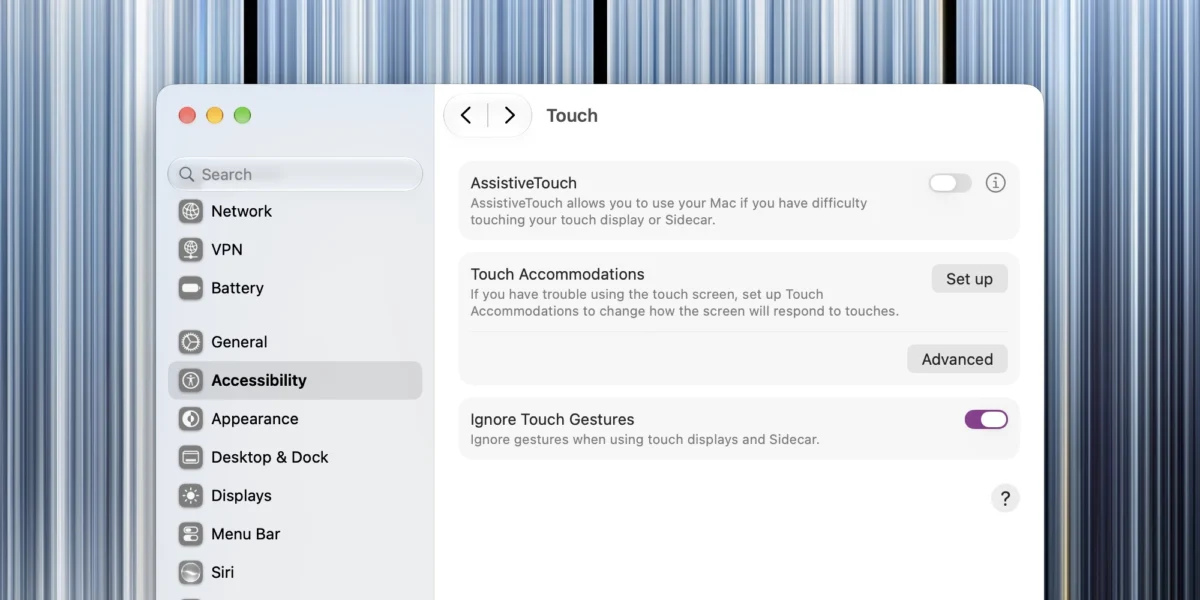
Once this setting is enabled, macOS will instantly ignore all physical touch inputs registered against the glass panel. The operating system is intelligently programmed to keep the specific settings toggle responsive to touch, ensuring that you can easily reverse the decision later without needing an external mouse or keyboard if your primary input devices temporarily fail. This setting also governs touch behavior when utilizing features like Sidecar with compatible iPad devices, ensuring a unified input philosophy across your Apple ecosystem.
Fine-Tuning Your Workspace: How to Customize Touch Gestures
If you do not want to completely disable the touchscreen but find yourself accidentally triggering certain actions, or if you wish to tailor the sensitivity to your specific workflow, macOS offers robust customization options rather than a binary on-or-off choice.

To access these advanced settings, navigate back to the Touch Display section at the bottom of the System Settings menu. Within this dashboard, users can adjust individual parameters, such as disabling edge-swipe gestures, modifying tap sensitivity, or restricting touch functions to specific applications.
Furthermore, Apple has integrated accessibility features directly into the touch subsystem. Users experiencing motor control differences or difficulties with standard touch gestures can configure Touch Accommodations and AssistiveTouch protocols. These tools allow individuals to adjust how long a finger must rest on the glass before a touch is registered, helping to filter out unintentional bumps and tremors while maximizing accessibility across professional software suites.
Broader Implications and Industry Reception
The addition of a touchscreen to the MacBook Pro—and the subsequent inclusion of a toggle to turn it off—highlights Apple’s evolving design philosophy. Historically, the company dictated a singular, uncompromised vision of how hardware should be used. In recent years, however, Apple has leaned toward empowering the user with granular software controls, acknowledging that professional environments vary wildly.

Industry analysts point out that this move protects Apple’s market share among enterprise and creative professionals who rely heavily on precise cursor movements in applications like Final Cut Pro, Xcode, and Adobe Creative Cloud. By making the touchscreen optional at the software level, Apple mitigates the risk of alienating core buyers who viewed the hardware upgrade as a gimmick, while still capturing consumers migrating from touch-centric Windows laptops.
As reviews of the PROLED XDR Display continue to roll in, the debate over ergonomics versus versatility will undoubtedly persist. However, the presence of a reliable disable switch ensures that users maintain absolute dominion over their machines, proving that technological progress does not have to come at the expense of established user preferences. Whether you choose to embrace the future of tactile Mac computing or stick to the tried-and-true trackpad, Apple has provided the tools to customize your workspace precisely to your liking.