The evolution of foldable smartphones has transformed mobile computing, bridging the gap between pocket-sized handsets and compact tablets. As foldable devices transition from novelty status to mainstream enterprise and consumer tools, operating systems must adapt to maximize the unique hardware configurations. With the release of the Samsung Galaxy Z Fold 8, the South Korean technology conglomerate has introduced refined software features designed to leverage its expansive inner display. Chief among these enhancements is an advanced suite of multitasking tools that redefines productivity on mobile hardware, allowing users to execute complex workflows traditionally reserved for desktop environments or laptop computers.
Background Context and the Evolution of Foldable Productivity

Since pioneering the commercial foldable category, Samsung has consistently focused on software optimization as the primary differentiator in a competitive market. Early iterations of the Galaxy Z Fold series introduced fundamental split-screen capabilities and floating windows, establishing a baseline for multi-window mobile operations. However, early versions often suffered from discoverability issues and rigid layout constraints that limited user efficiency.
Market research from consumer technology analysts indicates that productivity and multitasking are primary drivers for users adopting horizontal foldables. In response, Samsung’s software engineering teams have progressively refined One UI, the company’s proprietary operating system skin built on Android. The Galaxy Z Fold 8 represents a major milestone in this trajectory, introducing native three-way split-screen configurations, persistent taskbar customization, and fluid layout management. These updates address long-standing user demands for more dynamic screen allocation, reducing the friction associated with switching between intensive professional and personal applications.
Configuring the Persistent Taskbar for Enhanced Navigation

At the core of the Galaxy Z Fold 8’s multitasking architecture is the redesigned taskbar, a feature heavily inspired by desktop operating systems like Microsoft Windows and macOS. By default, foldable interfaces often hide navigation elements to maximize content consumption space. However, power users frequently require immediate access to frequently used applications without returning to the home screen.
To unlock the full potential of the device’s internal canvas, users must first configure the taskbar to remain persistently visible on the screen. Navigating the device settings allows for this structural adjustment:
- Unfold the hardware to access the primary inner display.
- Access the main system Settings application.
- Locate and select the Display menu.
- Choose the Taskbar sub-menu and select Taskbar style.
- Enable the Stay on screen parameter.
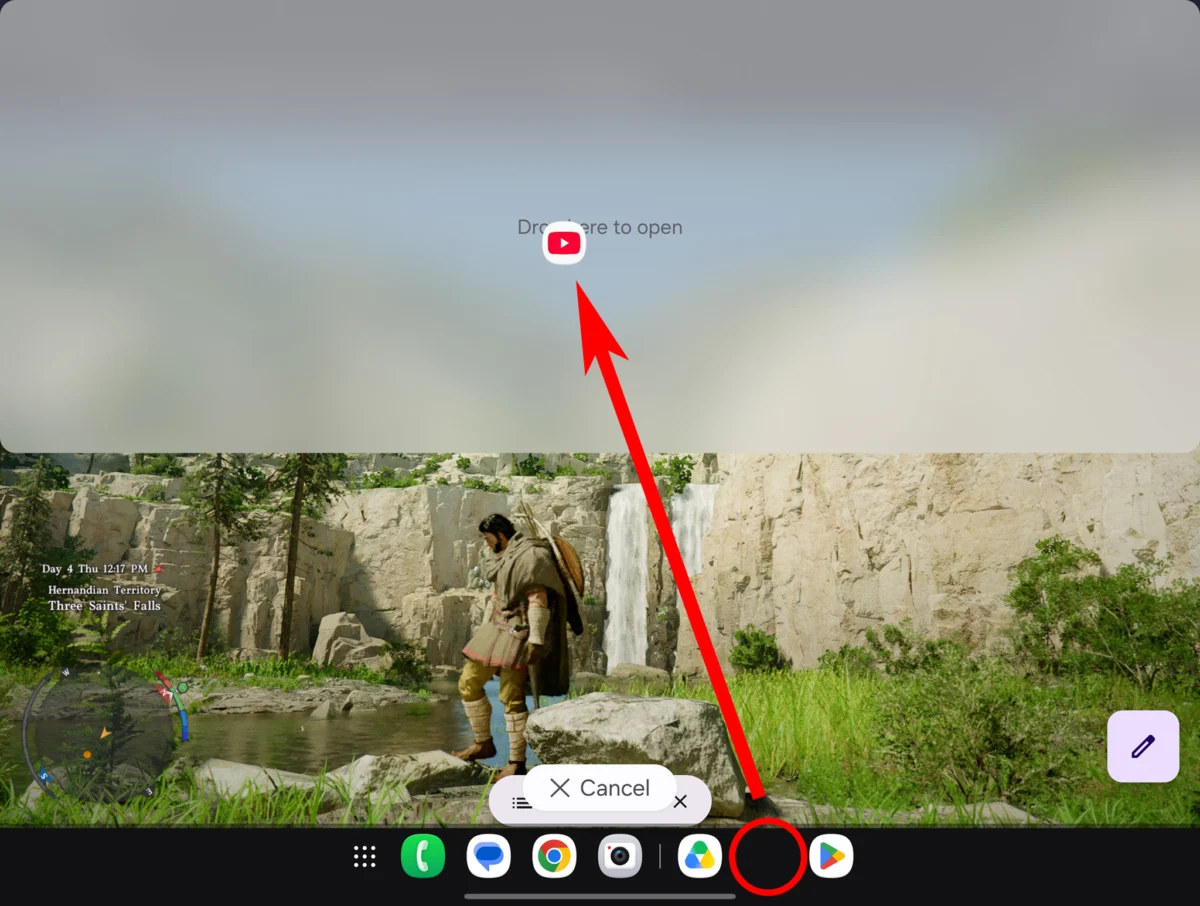
Once pinned, the taskbar remains anchored at the base of the inner display, providing instant access to pinned and recent applications. More importantly, this persistent bar serves as the launchpad for advanced multi-window operations, allowing users to drag and drop application icons directly onto specific quadrants of the active display.

Executing Three-Way Split-Screen Workflows
The marquee software feature of the Galaxy Z Fold 8 is its enhanced three-way split-screen functionality. Traditional smartphones are limited to dual-app views, which often restrict comprehensive research or cross-application referencing. The expansive aspect ratio of the Z Fold 8’s inner screen accommodates three active applications simultaneously without rendering text or interface elements illegible.
To initiate a three-way split-screen layout, users follow a standardized sequence:

- Launch any primary application on the unfolded inner display—for instance, a web browser.
- Access the persistent taskbar, press and hold a secondary application icon, and drag it toward any edge of the display. Visual indicators will appear, demonstrating where the application will snap into place.
- Select a third application either directly from the taskbar or by opening the comprehensive app drawer. Drag this final application into the remaining unallocated section of the screen.
Industry analysts note that this capability significantly accelerates mobile workflows, enabling professionals to simultaneously monitor communication platforms, reference research materials, and draft documents without closing windows or relying on secondary hardware.
Dynamic Layout Management and Off-Screen Staging
Managing three active applications simultaneously requires flexible spatial arrangements. Recognizing that equal vertical splits are not always optimal for every software combination, Samsung has integrated advanced layout controls into the Galaxy Z Fold 8 interface.

Users can manipulate screen real estate by interacting with the separation bars between application windows. Each divider features a tactile handle—distinguished by visual dots—allowing users to drag boundaries outward to expand a specific application’s footprint.
Furthermore, the Z Fold 8 introduces a unique "off-screen staging" mechanism. When an application window is expanded significantly beyond its standard proportional share, secondary applications do not terminate or compress into unreadable thumbnails; instead, they remain suspended off to the side of the active workspace. Users can instantly recall these staged applications with a single tap, effectively creating a multi-monitor desktop environment within a pocket-sized chassis.
Alternative grid configurations can be accessed by tapping the separator handles and selecting the grid icon. This action reorganizes the workspace into asymmetric layouts, such as one large primary window paired with two smaller quarter-sized applications. Additional options include quick-swap tools to instantly interchange application positions across frames, and floating window support that allows users to layer multiple apps over the grid layout, pushing the total number of running applications beyond four.

Industry Implications and Future Outlook
The introduction of these advanced multitasking features on the Galaxy Z Fold 8 highlights a broader shift in the mobile industry. As smartphone hardware performance plateaus in traditional metrics like raw processing speed and camera megapixel counts, software innovation has become the primary battleground for manufacturers seeking to justify premium hardware pricing.
Enterprise adoption of foldable devices is expected to benefit directly from these software refinements. Financial analysts, legal professionals, and field service technicians frequently require simultaneous access to multiple data streams. By eliminating the necessity of carrying auxiliary tablets or laptops for mobile productivity tasks, devices like the Galaxy Z Fold 8 offer a compelling value proposition for enterprise deployment.

Competitors in the foldable market are expected to accelerate their own operating system developments to match Samsung’s multitasking capabilities. As consumer demand for versatile, multi-functional mobile devices continues to rise, the integration of desktop-class window management within mobile form factors will likely become an industry standard rather than a luxury feature.