The LG C6 OLED TV stands as a highly regarded mid-range option in the current market, lauded for its exceptional picture quality. However, comprehensive testing over the past month has revealed a consistent finding: a significant portion of its visual potential remains untapped right out of the box. Fortunately, achieving a more cinematic and nuanced viewing experience does not necessitate professional calibration or extensive menu exploration. A few judicious adjustments can dramatically enhance movie immersion, reveal greater shadow detail, refine motion clarity, and even elevate the performance of the integrated speakers. This guide outlines the precise settings that have been found to optimize the LG C6 OLED after an extended period of daily use, transforming it from a good TV into a truly outstanding one.
The Foundation: Selecting the Optimal Picture Mode
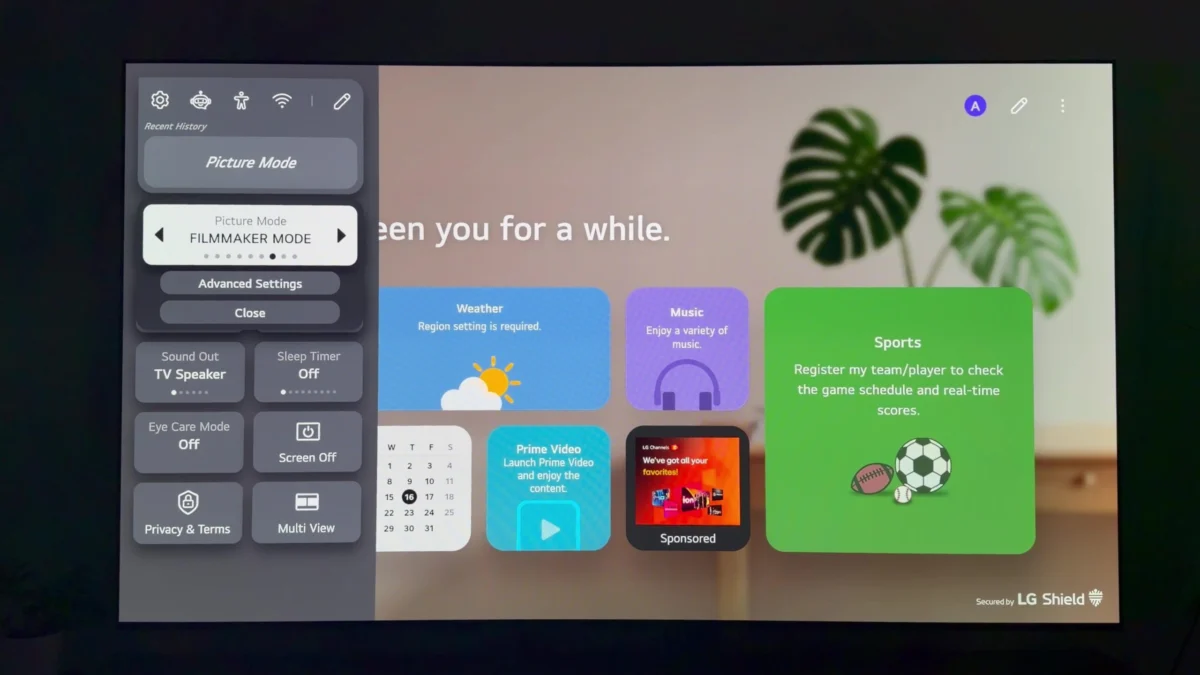
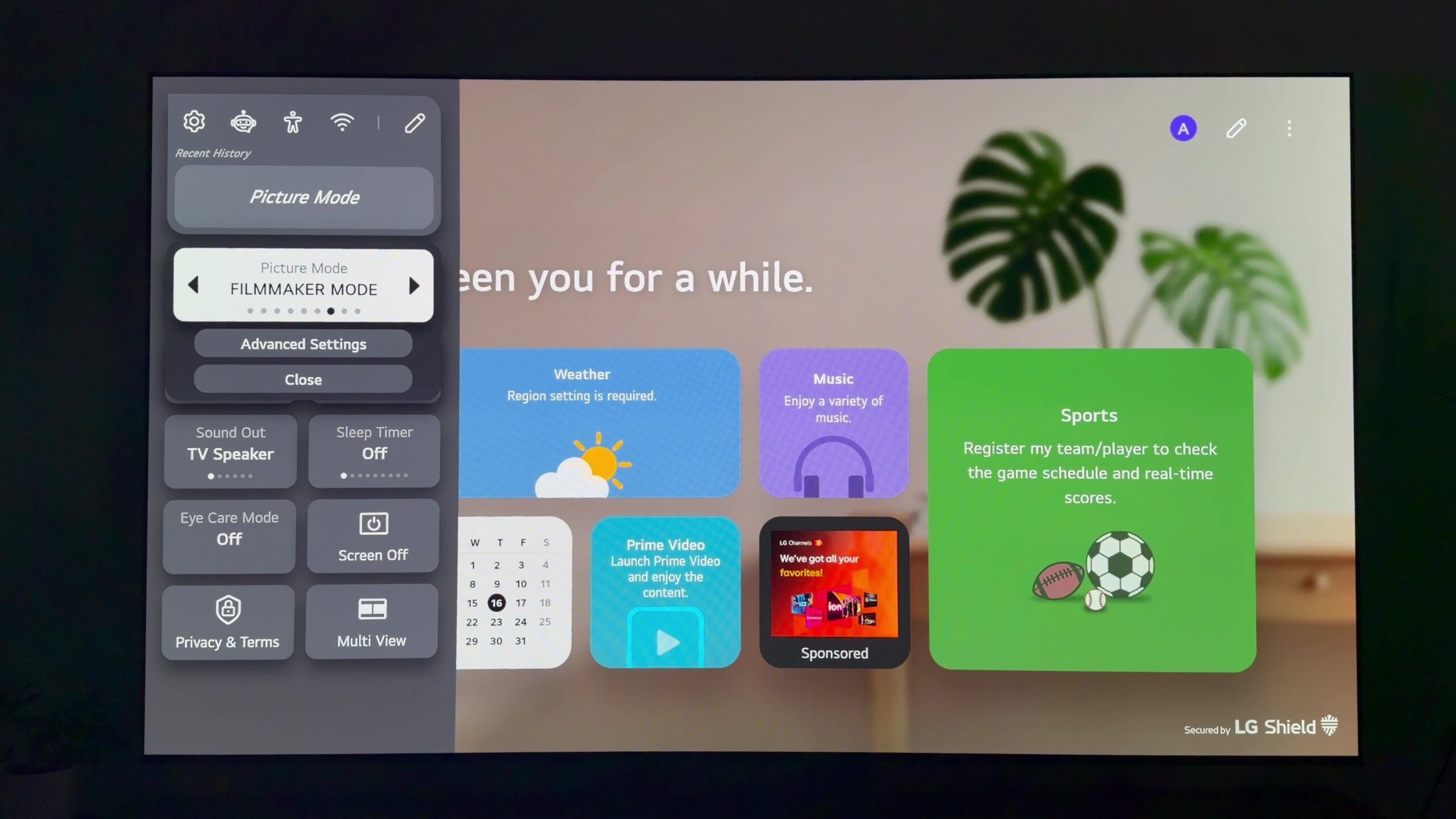
LG equips the C6 with a variety of picture presets, each designed for different viewing scenarios. For enthusiasts of film and television content, "Filmmaker Mode" emerges as the preeminent choice. This mode is meticulously engineered to bypass superfluous image processing, presenting content precisely as the creators intended. Throughout the evaluation period, Filmmaker Mode consistently delivered the most authentic and engaging visual experience, making it the default setting for reviewing cinematic content.
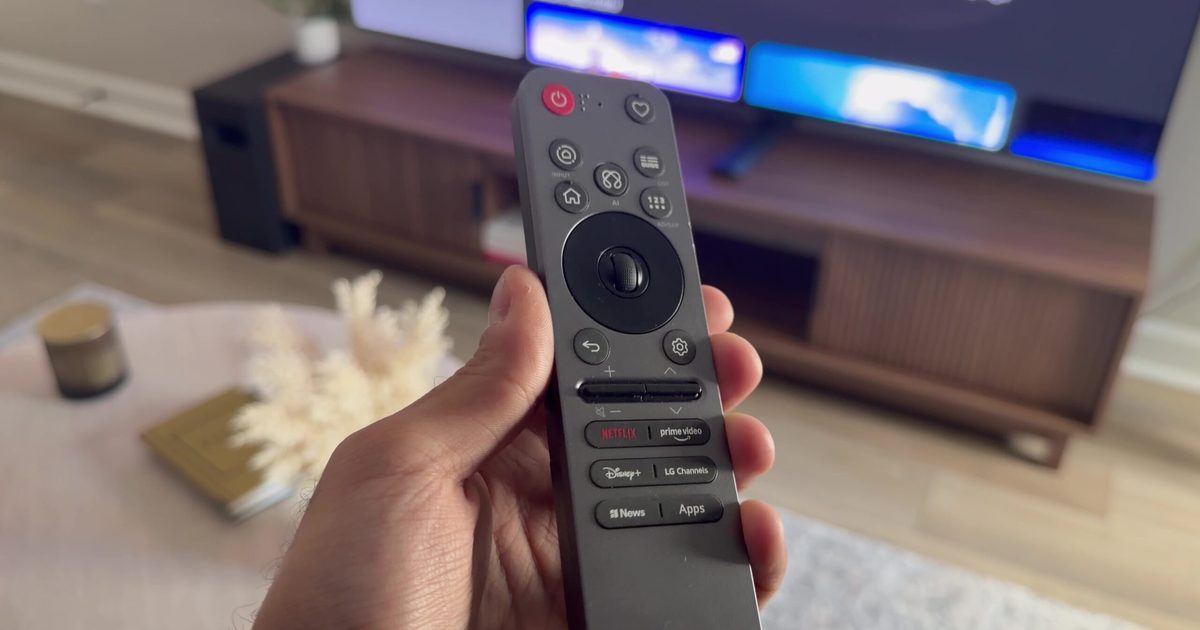
Accessing this mode is a straightforward process: a press of the "Settings" button on the remote, followed by navigating to the Quick Menu, then "Picture Mode," and finally selecting "Filmmaker Mode."
While Filmmaker Mode excels in its fidelity, it may not be the ideal selection for every environment or viewer preference. For those who frequently watch in well-lit rooms or find Filmmaker Mode to be too subdued during daylight hours, "Cinema" and "Cinema Home" offer compelling alternatives. Both of these presets maintain the TV’s inherent color accuracy and remarkable contrast while providing a welcome boost in brightness, which is particularly beneficial in brighter viewing spaces. These modes strike a balance between preserving the integrity of the image and offering a more accommodating brightness level for daytime viewing.
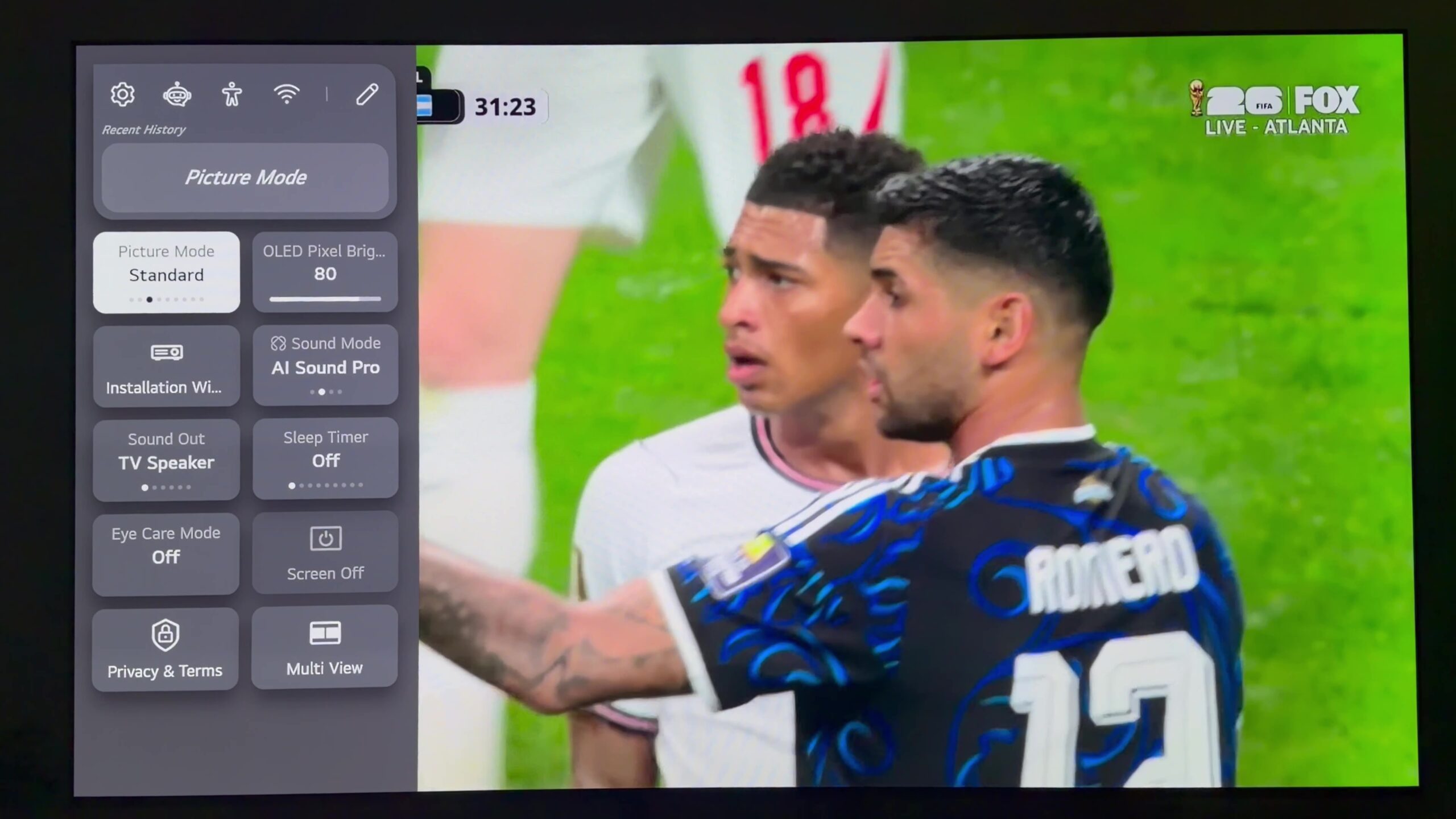
An exception to this general recommendation arises with live sports broadcasts. The "Standard" mode, with its slightly cooler color temperature, proves to be exceptionally well-suited for the dynamic nature of live television. It also contributes to a perception of increased brightness, making it the preferred setting for sports enthusiasts and for daytime viewing of any content when a more vibrant image is desired without straying too far from accurate color reproduction. This mode provides a livelier presentation that can enhance the excitement of fast-paced sporting events.
Enhancing Filmmaker Mode with Ambient Light Adaptation
For users who opt for Filmmaker Mode, a further enhancement can be unlocked by enabling "Filmmaker Mode Ambient Light." This intelligent feature dynamically adjusts the TV’s brightness in response to the prevailing lighting conditions in the room. In well-lit environments, the image brightens to ensure visibility, while in darker settings, it dims to provide a more comfortable and immersive viewing experience. This automatic adjustment eliminates the need for manual recalibration as the day progresses or as room lights are altered, offering a seamless viewing experience.
To activate this feature, navigate to "All Settings," then "Picture," followed by "Brightness," and finally select "Filmmaker Mode Ambient Light."
It is important to note a specific limitation of this feature: it is exclusively active when viewing High Dynamic Range (HDR) and Dolby Vision content within Filmmaker Mode. Consequently, users will not observe its effects on all picture modes or content sources. This targeted application ensures that the ambient light adjustment complements the enhanced dynamic range of HDR content without interfering with other viewing modes.
Addressing Raised Blacks and Refining Shadow Detail
One of the most impactful improvements observed during the testing phase involved subtle adjustments to the brightness controls. In certain dimly lit scenes, a phenomenon known as "raised blacks" can occur, where the deepest shades appear more as a muted gray rather than a true, inky black. While not universally present in all content, when this issue arises, the following modifications consistently lead to a richer and more natural image.
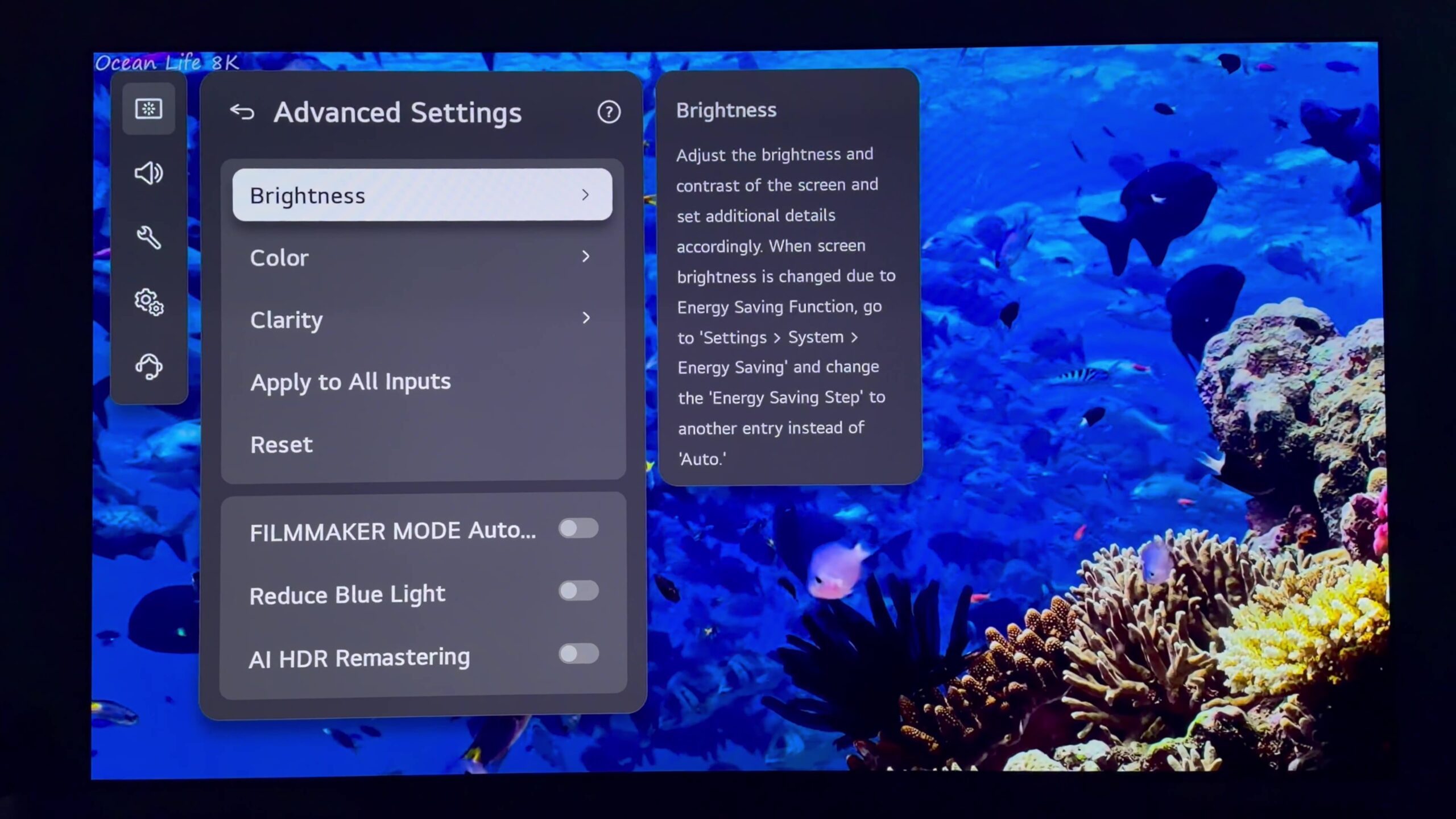
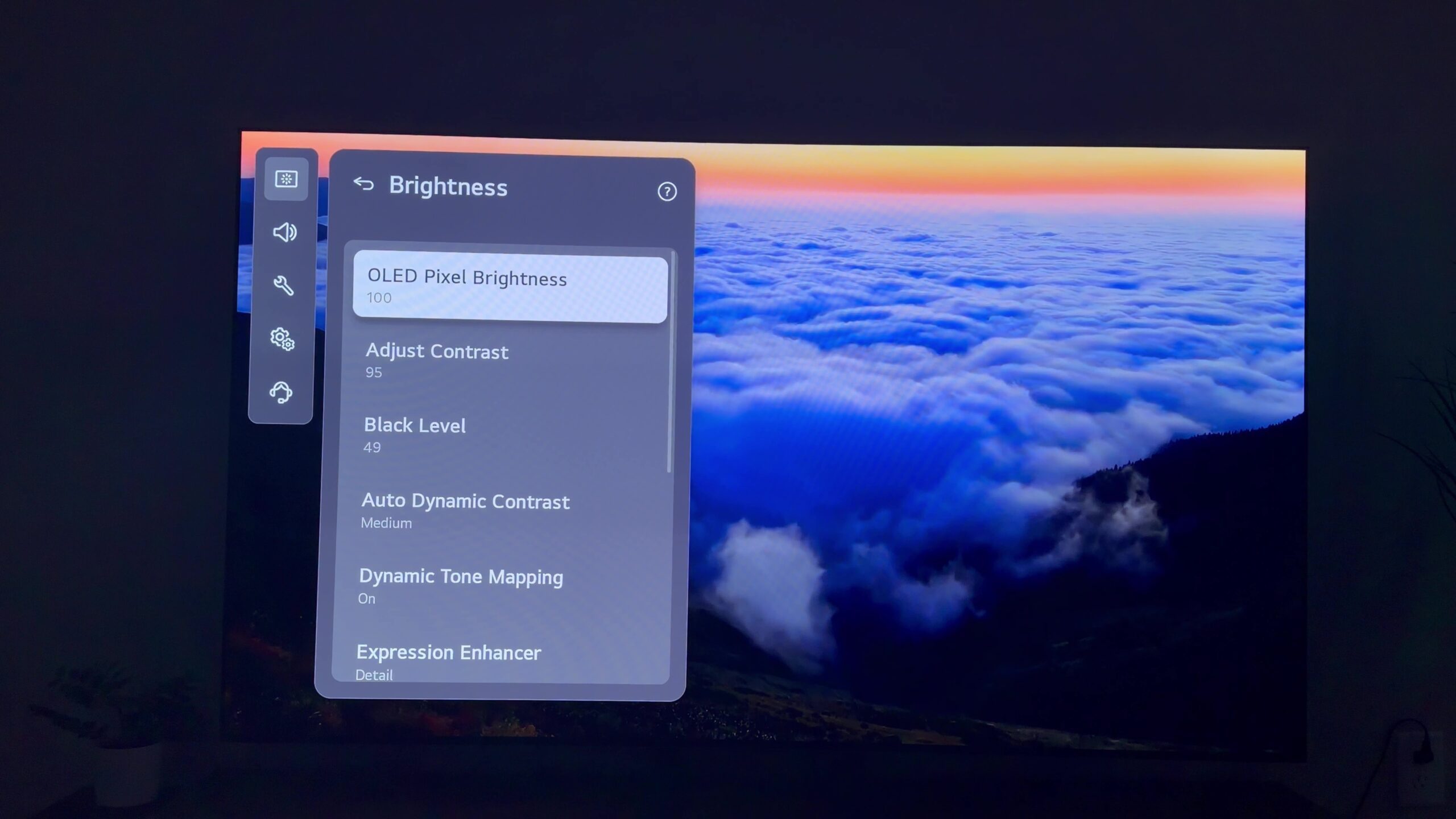
These critical adjustments are located within "All Settings" > "Picture" > "Advanced Settings" > "Brightness."
The first adjustment pertains to "Contrast." Located as the second option within the Brightness menu, reducing the Contrast from its default setting to 95 proved to be a key step. This minor decrement effectively curtails excessively bright highlights without compromising the overall impact and vibrancy of the image. It strikes a delicate balance, preventing highlights from becoming blown out while maintaining the image’s dynamic range.
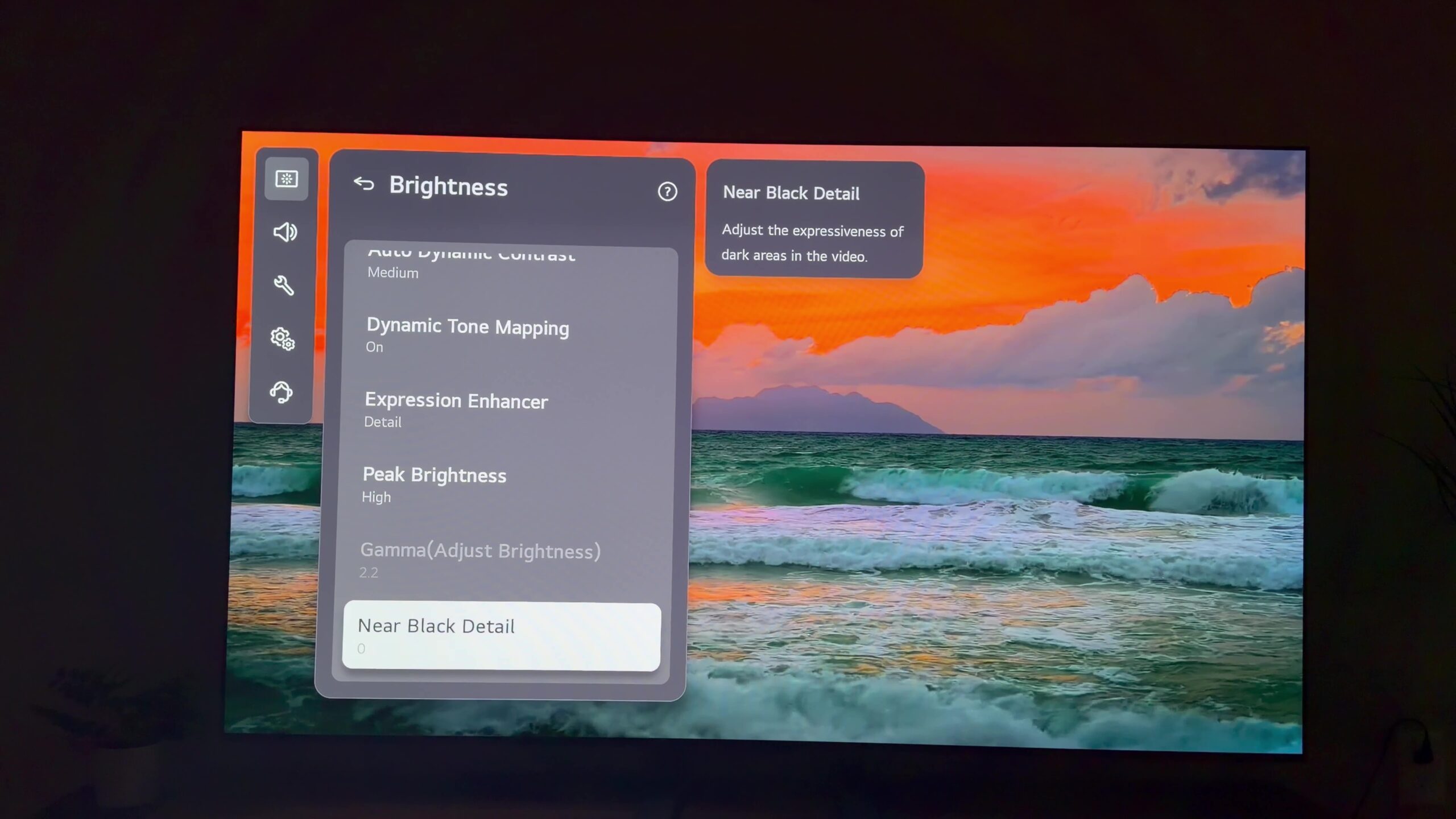
The subsequent adjustment involves the "Black Level." Returning to the primary Brightness menu, lowering the Black Level from its default of 50 to 49 is a seemingly small change that yields a noticeable reduction in the raised black effect. By subtly lowering this setting, the TV is better able to render true blacks, particularly in darker scenes, enhancing the depth and dimensionality of the image.
The final crucial adjustment is "Near Black Detail." By default, this setting is at 0. Shifting it to -1 has been found to imbue darker scenes with a more profound and natural quality. This adjustment prioritizes richer black tones, ensuring that subtle details within shadows are preserved rather than being crushed into oblivion. This subtle tweak can significantly enhance the perceived depth and realism of dark imagery.
It is paramount to acknowledge that picture settings are inherently subjective and influenced by individual preferences and viewing environments. Therefore, users are encouraged to experiment cautiously. The key is to avoid drastic alterations. Instead of jumping from a default value to an extreme setting, making incremental changes of one or two points (e.g., -1, +1, or +2) can often yield a surprisingly significant improvement without unbalancing the overall picture. These minor adjustments allow for fine-tuning that respects the source material while catering to personal taste.
Elevating Motion Handling: Avoiding the "Soap Opera Effect"
Motion handling is an area where LG OLED televisions, including the C6, often benefit from subtle adjustments. Fortunately, refining motion clarity is a quick and simple process that takes mere moments.
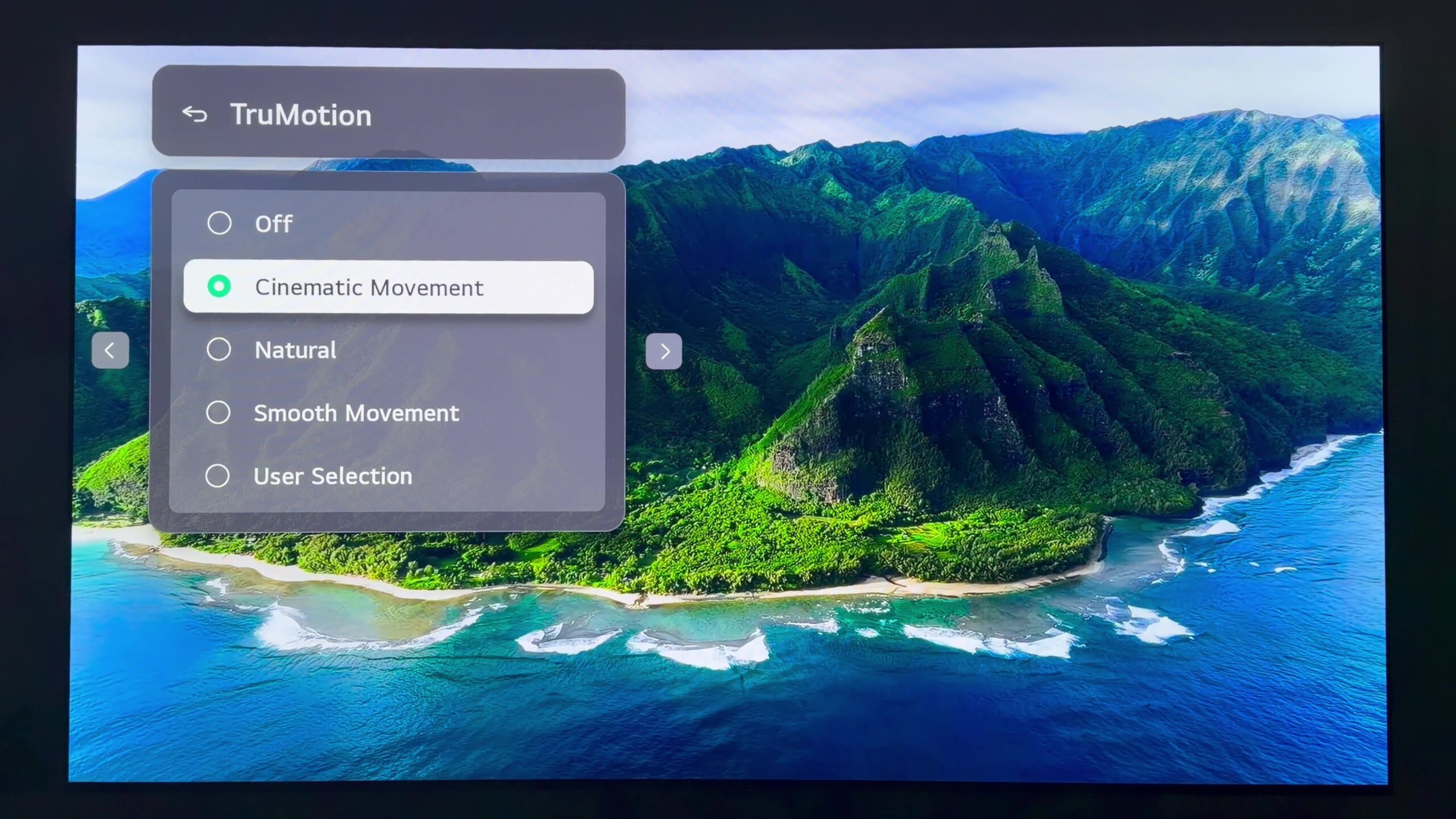
Navigate to "All Settings" > "Picture" > "Advanced Settings" > "Clarity," and within this submenu, locate "TruMotion." Changing this setting to "Cinematic Movement" is recommended. During extensive testing, this option consistently delivered noticeably smoother motion while crucially avoiding the artificial and often distracting "soap opera effect" that can detract from the cinematic experience. This setting aims to enhance the fluidity of on-screen action without making it appear unnaturally smooth.
For viewers whose primary focus is sports, "Cinematic Movement" remains a viable option. However, "Natural" is often the preferred setting for sports enthusiasts. This preset effectively maintains the fluidity of fast-paced action, such as a basketball or hockey puck in motion, without introducing distracting artifacts like ghosting or trails. This seemingly minor adjustment can significantly enhance the clarity and realism of live sports broadcasts.
Optimizing the Integrated Audio Experience
LG has simplified its sound presets in the latest iteration of webOS. While this streamlining has removed some legacy options, such as the previously favored "Cinema" sound mode, a robust alternative has emerged. The "AI Sound Pro" preset has consistently demonstrated the most effective balance between dialogue clarity, overall fullness of sound, and a noticeably expanded soundstage during the evaluation period. This has made it the go-to preset for an enhanced audio experience from the TV’s built-in speakers.
AI Sound Pro can be enabled by accessing the Quick Menu, selecting "Sound Mode," and then choosing "AI Sound Pro."
For users who rely on the TV’s integrated audio system rather than an external soundbar or a dedicated home theater setup, AI Sound Pro is unequivocally the recommended sound mode. It intelligently analyzes the audio content and optimizes the sound profile for a more immersive and engaging listening experience. This feature is particularly valuable for those who do not have a separate audio system, transforming the TV’s built-in speakers into a more capable audio performer.
Concluding Thoughts: A Path to Superior Viewing
The settings detailed above represent the culmination of an extensive testing period with the LG C6 OLED. These adjustments, while not overly complex, collectively contribute to a significantly enhanced overall viewing experience. From achieving more accurate picture quality and revealing finer shadow details to enjoying smoother motion and richer audio, the impact of these subtle tweaks is readily apparent.
It is important to note that many of these recommendations are not exclusive to the LG C6. They often translate effectively to other LG C-Series OLED models, providing a valuable starting point for users seeking to optimize their viewing experience. Ultimately, picture and sound settings are a matter of personal preference, and these suggestions are intended to serve as a guide for fine-tuning the TV to suit individual environments and tastes. The accessibility and effectiveness of these adjustments underscore the LG C6 OLED’s potential for delivering a truly premium viewing experience with minimal effort. The ability to unlock such substantial improvements through simple, user-accessible settings highlights the sophisticated engineering within this mid-range OLED television.